Instruction booklet text, page by page
Page 1: Cover
AGENT CONSOLE
INSTRUCTION BOOKLET
For Mac computers with Apple silicon
VERSION 0.1
Page 2: Front matter
Thank you for selecting the harNES Agent Console.
Please read this booklet before you begin.
A note from the maker. We built harNES with the agents it watches. If an agent asks a question and the board misses it, please tell us.
1. Precautions
Run only one copy of harNES. A second copy can write over your saved board.
Words used in this booklet
Board — The harNES window.
Party — All panes on the board.
Pane — A terminal on the board.
Party card — A pane’s card on the party rail.
Cartridge — A project folder.
Merc — A helper the agent starts.
Quest log — Where helpers report.
Contents
Precautions. Reading the Screen. The Stage. Names of Card Parts. Meet Your Party. The Quest Log and Mercs. When a Quest Goes Quiet. How to Use the Controls. Loading a Cartridge. Organizing Your Party. Spells. Summon a Partner. Power-ups, Switches and Themes. Saving Your Party. Hints for the Party Leader. Inserting harNES. Service Note and Memo
© 2026 harNES. Claude Code and Codex belong to their makers.
Page 3: Reading the Screen
2. Reading the Screen
IT'S STILL JUST YOUR TERMINAL.
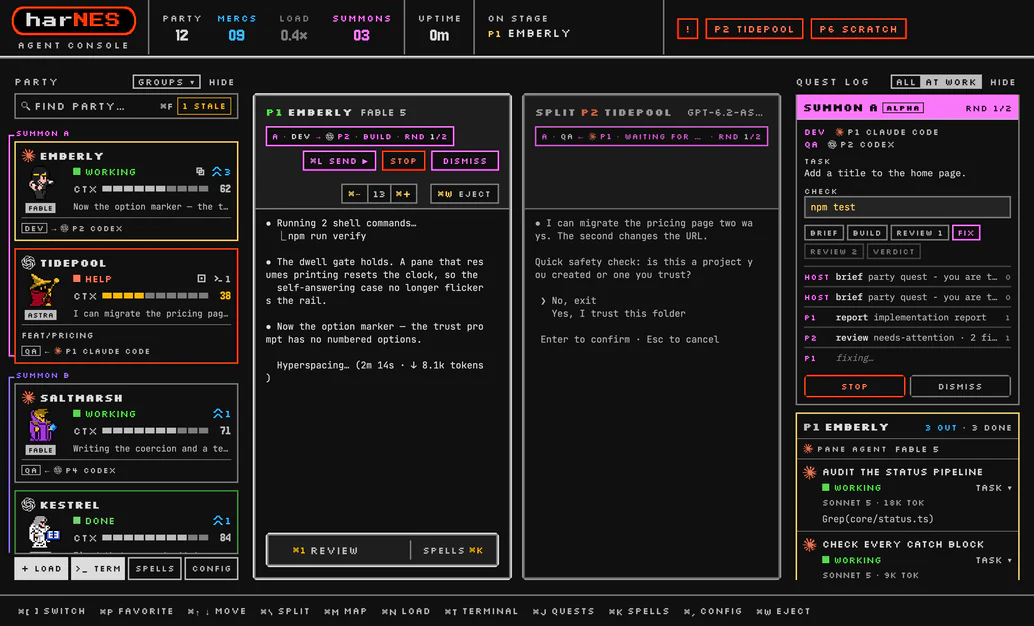
The board has five parts. This example shows the demo party, with invented project names.
HUD. Read the totals for the whole board here.
PARTY RAIL. Click a card to bring its pane to the stage.
STAGE. Type here to speak to the selected agent.
QUEST LOG. Look here for the selected pane’s helpers.
CONTROL BAR. Click a shortcut here to use it. + LOAD, >_ TERM, SPELLS and CONFIG wait in the dock at the foot of the rail.
PARTY — panes open on the board
MERCS — mercs at work right now
LOAD — how hard your Mac is working. When it glows, click it to see who is to blame.
SUMMONS — pairs joined by a summon, shown while there is one
P2 TIDEPOOL — Up to three panes marked HELP or FAILED. +N counts any others.
Page 4: The Stage
The Stage
The strip above the terminal is the pane’s ledger. Look there for the controls for that pane.
P#. This is the pane’s seat on the party rail.
Project and topic. Read the cartridge name followed by the topic.
Model and effort. These appear when the agent has recorded them.
PORTS. Click the port number to open the server in your browser. ✕, then STOP, shuts it down.
Type size. Click the number to return to 13.
SPLIT. Press ⌘\ to hold or release a pane on stage. Up to four panes can share the stage. Click one to give it the controls.
Note: You may type while STARTING… is on screen.. To attach a file, drop it on the terminal when DROP TO ATTACH appears.
Page 5: Names of Card Parts
4. Names of Card Parts
EVERY BUG IS A BOSS.
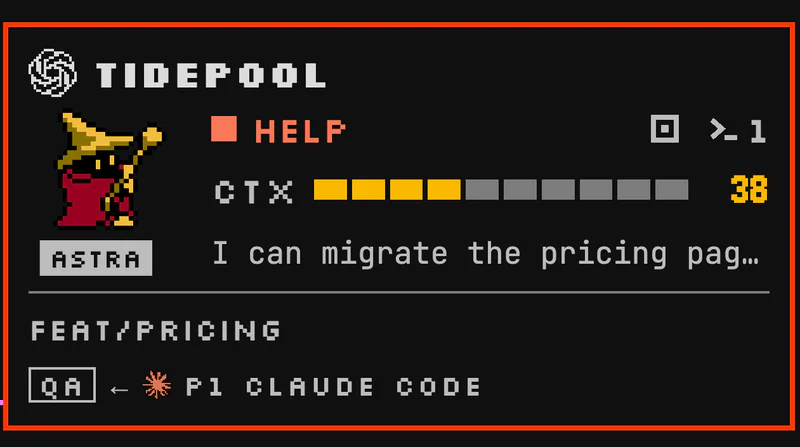
Read the card to see what a pane is doing before you open it.
Status. The square and word say what the pane is up to. No class word: the character says it.
Marks and counts. ▣ on stage, ⧉ folder shared. >_ counts background commands and the chevron counts mercs at work. It leaves when the last one comes home.
Summon row. A summoned pane’s role and partner.
CTX. This shows how much room is left in the context window.
Last line. Read the agent’s latest line or the conversation topic. Hover to see how long the last turn took.
Detail row. Branch and @login, if any.
Agent mark and name. Claude Code or Codex, the project, then your label.
Pose key
Standing — The usual pose.
Swing — The turn just ended.
Arms raised — The pane needs HELP or FAILED.
Status words
WORKING — The agent or anything it started is busy.
IDLE — Ready for your next prompt.
STANDBY — Waiting to start.
HELP — Waiting for your reply.
FAILED — The turn ended in an error.
DONE — Everything it started finished while you were away.
Note: The chip under the character names the model. Filled, the pane is still on the model it started with. Outlined, it was switched. In BY MODEL, the class sticks with the starting model.
Page 6: Meet Your Party
5. Meet Your Party
Each pane joins as one of twelve classes. Learn the shapes and you can find a pane before you read its name. Each heading gives the Claude Code model first and the Codex model second.
FABLE / ASTRA
OPUS / SOL
SONNET / TERRA
HAIKU / LUNA
Mage — Give this one the back row.
Summoner — Stand clear of the crystal.
Wizard — He wrote half the tome.
Paladin — Holds fast with a greatsword.
Fighter — Look for the broad sword.
Cleric — Keeps the party on its feet.
Bard — Let the lute do the work.
Ranger — Keeps trouble at bow range.
Monk — His fists will do.
Ninja — Already behind you.
Dancer — Keep an eye on the veil.
Martial Artist — Watch the feet, not the hands.
Note: Open PARTY ROSTER in CONFIG under APPEARANCE. Choose BY MODEL to use this chart for both Claude Code and Codex panes. RANDOM is the default.
Page 7: The Quest Log and Mercs
6. The Quest Log and Mercs
YOUR SUBAGENTS HAVE NAMES NOW.
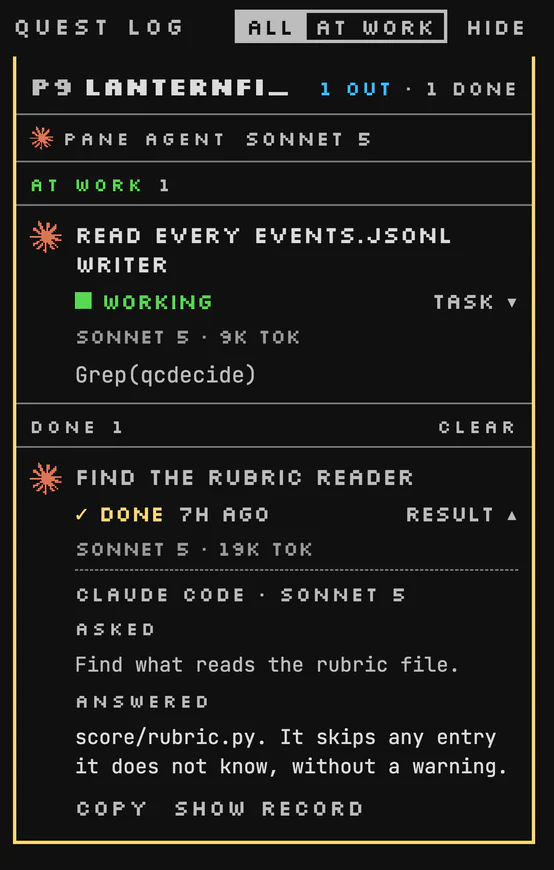
The quest log follows the selected agent pane. Select another pane to see its jobs. Its title counts the mercs OUT and DONE, the same numbers as the card. MERC ROWS in CONFIG sets which cards show their mercs.
SUBAGENTS. Claude Code sends these helpers out to do part of a job.
CODEX MERCS. These are jobs a pane’s agent starts with codex exec.
SHELLS. These are background commands the agent can leave running after its turn ends.
ALL. Flip the switch to ALL to bring finished work into the log.
DONE. The newest come home first, each saying how long ago. CLEAR sweeps this pane’s list.
Job details. Look below the status for the model, effort and tokens used.
RESULT. Open it to read the job’s whole record. Still out? It says TASK.
Page 8: When a Quest Goes Quiet
When a Quest Goes Quiet
If a job goes quiet, read its entry in the quest log before starting it again.
Look under NEEDS ATTENTION for a Codex job that stalled or a command that stopped or failed.
SUBAGENT. Claude Code
Open RESULT to read ASKED and ANSWERED.
CODEX JOB. codex exec
Open RESULT to read WHAT HAPPENED and LAST RAN, when the job left them.
BACKGROUND COMMAND. SHELL
Open OUTPUT to read the command and its latest output.
Use COPY to copy the answer or output. SHOW RECORD reveals the record in Finder. For a background command, use SHOW FILE.
Note: CLEAR, at the right of a pane’s DONE heading, removes that pane’s finished, stalled, stopped and failed entries from the list. Other panes keep theirs, and the records stay on disk.
Page 9: How to Use the Controls
8. How to Use the Controls
Hold the modifier shown, then press the marked key. For ⌃Tab, hold Control and press Tab. Ordinary typing goes to the agent.
⌘[ / ⌘], ⌃⇧Tab / ⌃Tab — Switch to the previous or next pane.
⌘↑ / ⌘↓ — Move the selected agent pane up or down the rail.
⌘T / ⇧⌘T — ⌘T or >_ TERM opens a plain terminal at home. ⇧⌘T opens one in the selected pane’s folder.
⌘B / ⌘J — Show or hide the party rail or quest log.
Eject or quit?
Press ⌘W twice on the same pane within three seconds to eject it. If STILL WORKING - PRESS AGAIN appears, press ⌘W once more within five seconds.
QUIT (⌘Q) asks before closing harNES if a Codex job or background command is still running.
Note: Cancel is the default.
Page 10: Loading a Cartridge
9. Loading a Cartridge
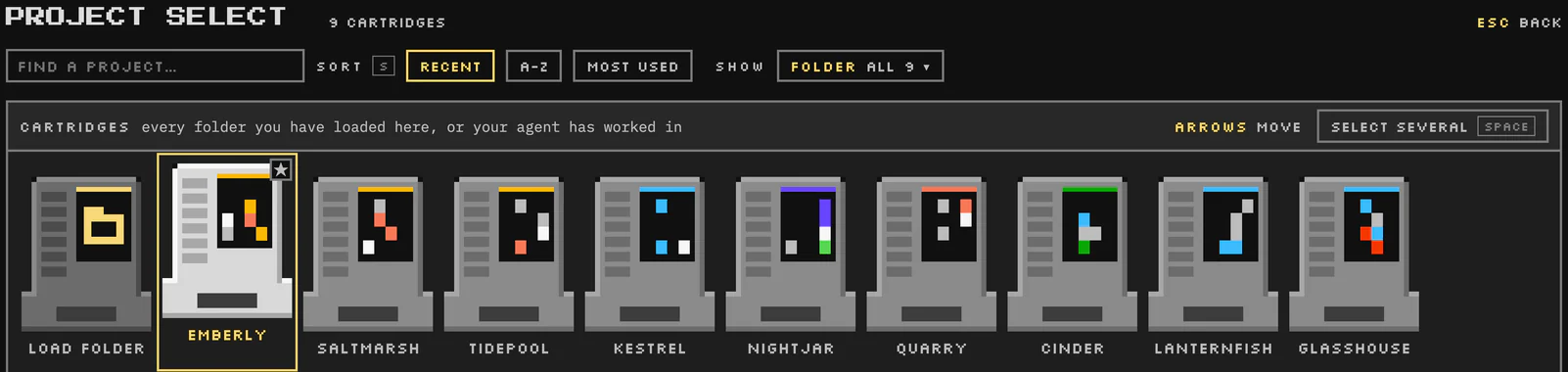
Press ⌘N or click + LOAD for PROJECT SELECT. Choose a cartridge from the shelf or use LOAD FOLDER to add a project.
Find. Type part of the project name to narrow the shelf.
The shelf. Use the arrow keys to move from cartridge to cartridge.
AGENT and MODEL. Choose what will run in the new pane.
WORKS IN. In a Git project, choose THIS FOLDER or SEPARATE COPY.
LOGIN. Choose the account for this Claude Code load.
LOAD CARTRIDGE (ENTER). Press it to open the pane.
SEPARATE COPY
In a Git repository, this gives the pane its own folder and branch. Commit first to include your changes.
Note: If the ledger reads SEPARATE COPY FAILED, the pane is using the shared folder. Check the folder before you begin work.
Page 11: Organizing Your Party
Organizing Your Party
FIND PARTY (⌘F)
Once two panes are on the board, type a few words in FIND PARTY. Every word must match. Press ENTER to open the first match, or ESC to clear the box.
Two of twelve panes match CODEX.
LABEL
Double-click a card’s name and type a label. Press ENTER to keep it or ESC to cancel.
FAVORITE (⌘P)
Star a pane to keep it at the top. Drag the other cards into order.
COLLECTIONS
GROUPS ▾ in the PARTY head holds NEW GROUP, GROUP BY FOLDER (preview first), COLLAPSE ALL, EXPAND ALL and DISBAND ALL. ⌘-click to pick cards, ⇧-click for a run, then use GROUP ▾ or drag them onto a group bar, UNGROUPED or the new-group strip. The bar counts its panes, ! for waiting on you and ■ for working. Disbanding keeps the panes.
SIDE PROJECTS holds three panes. One of them is working.
Page 12: Spells
Spells
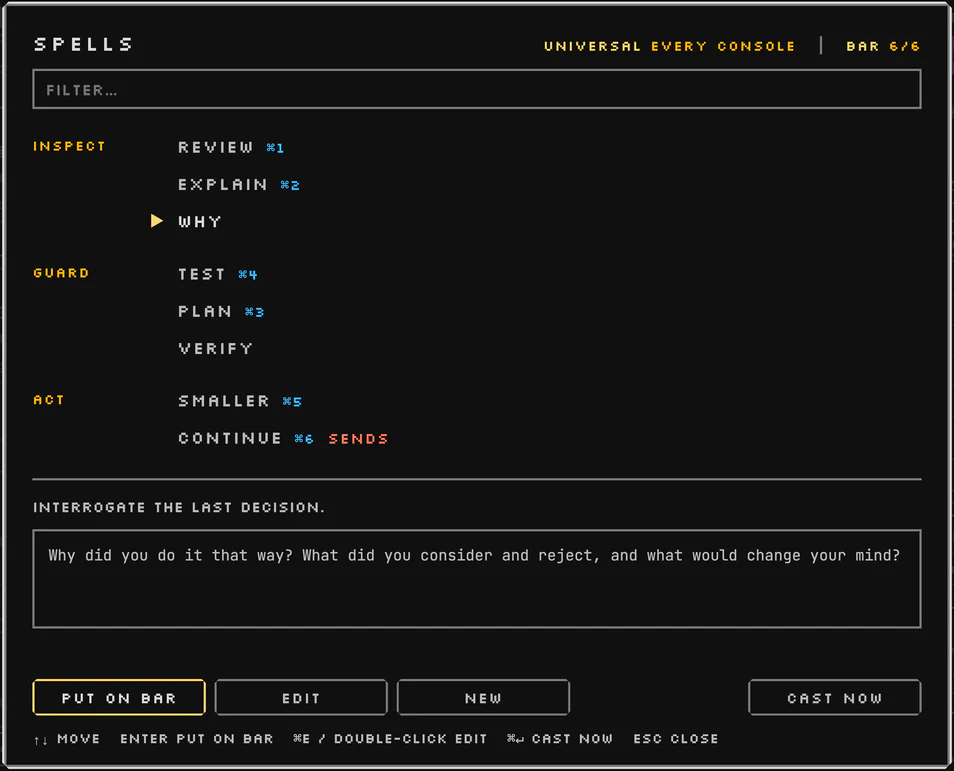
A spell puts a saved prompt in the selected agent pane. If the spell is marked SENDS, it submits the prompt at once. Otherwise, add to the prompt if you wish, then press ENTER.
Press ⌘K or click SPELLS to open the spellbook.
Cast a spell on the bar with ⌘1 to ⌘6. On a narrow stage, SPELLS opens the rest.
Spells in the box
CONTINUE is marked SENDS when harNES is new.
Press ENTER on a spell to PUT ON BAR or TAKE OFF BAR.
Use ⌘↵ or CAST NOW to cast from the spellbook.
Drag spells on the bar to change their order.
Choose NEW to write a spell or EDIT (⌘E) to change one. Tick SEND IMMEDIATELY if the spell should submit its prompt.
INSPECT — REVIEW (⌘1), EXPLAIN (⌘2), WHY
GUARD — PLAN (⌘3), TEST (⌘4), VERIFY
ACT — SMALLER (⌘5), CONTINUE (⌘6)
Page 13: Summon a Partner
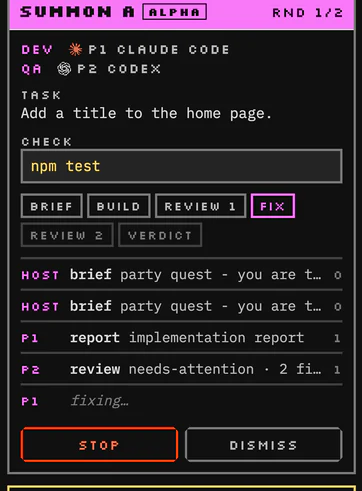
Summon a Partner (ALPHA)
harNES carries the messages while two agents work on one task.
1. SUMMON
Click SUMMON CODEX on the pane’s ledger. Choose a MODEL and, if offered, an EFFORT. Press SUMMON.
2. TASK
Write the TASK on the summon card and press START.
3. BUILD, CHECK, REVIEW
If supplied, CHECK runs on each DEV report before QA reads it.
4. APPROVED or STOPPED
Look for WHY if the card reads STOPPED.
The starting pane is DEV. QA opens in the same folder to review the work. Codex QA uses a read-only sandbox. Claude Code QA has its editing tools disabled.
Press STOP once to end the relay. Press DISMISS twice within four seconds to unlink the panes and leave them open.
Note: Choose NEW QUEST to give the same pair another task.
Page 14: Power-ups, Switches and Themes
Power-ups, Switches and Themes
Press ⌘, for CONFIG. Flip through its six tabs with [ and ], or with ← and → before you pick a row. Press ↓ to reach the rows, then ← and → to change one. Press ESC to leave a row, and again to close. Read the help on the selected row before changing it.
AI SESSION LABELS (SHARED) — SHARED shows a short description on panes that share a project.
DEFAULT AGENT (CLAUDE CODE) — Sets the agent for a project you have not opened before.
DEFAULT MODEL (AUTO) — AUTO lets the agent choose its model.
STAY AWAKE (WHILE WORKING) — Keeps the Mac from idle sleep while an agent works or a relay runs.
TERMINAL FONT (MONO) — Choose a face for the terminal text.
NOTIFY (ON) — Sends a system notice when a pane you cannot see needs HELP or FAILED.
Press RESET CONFIG, then CONFIRM RESET. In SOUND, pick your cues and volume. QUIET hushes cues and banner sounds, now or on a schedule; the banners still show. Under SESSIONS, CLAUDE START and CODEX START hold the command each agent starts with. Add your own flags there; harNES adds its own and keeps them if the two disagree.
Themes
NES DARK — is the default.
NES LIGHT — uses a light background.
GAME BOY — uses four greens.
Pick THEME in CONFIG under APPEARANCE to step through the themes.
Page 15: Saving Your Party
Saving Your Party
harNES saves the board as you play. Set RESTORE PARTY in CONFIG under SESSIONS to choose what happens at the next start.
What comes back
Agent cards return in their previous order, with their labels, stars and groups.
A Claude Code pane reopens its conversation if Claude Code still has the record.
Please note
A running relay comes back stopped.
A Codex pane starts a fresh session in the same folder.
A plain terminal comes back only if you started Claude Code in it and its record is still on disk.
ON DEMAND: Stage panes and both panes of a summon start at once. Open a STANDBY card to start its pane.. ALL AT ONCE: Every agent starts at launch.. OFF: Start with an empty board.
Page 16: Hints for the Party Leader
15. Hints for the Party Leader
A party is only as good as what its leader notices.
Who needs you?
Look at the upper right for panes marked HELP or FAILED, and click a name to jump to it. ALL CLEAR means the list is empty.
Has CTX dropped below 20%?
Ask the agent for a handoff so the next session can start from its notes.
Does the card say WORKING while the terminal is quiet?
Check the quest log for a helper the agent may be waiting on.
Need another pane in this folder?
Press ⇧⌘N to open one without going through PROJECT SELECT.
Stepping away for a while?
For a Claude Code pane, set WALK-AWAY TIMER in CONFIG under BACKGROUND to keep its prompt cache warm while you are away.
Page 17: Inserting harNES / Service Note and Memo
16. Inserting harNES
CHECK YOUR SYSTEM. Use a Mac with Apple silicon. Install and sign in to Claude Code or Codex.
INSERT. Download harNES from the latest release and drag it into Applications.
PRESS START. Open harNES. On an empty board, press ENTER or SPACE to open PROJECT SELECT.
To build from source, follow Build from source in the README.
Service Note. harNES Agent Console
Service Note and Memo
TERMS. harNES is provided as is, without warranty of any kind. Your agents write their own transcripts.
Open an issue on the project page. Describe what you were doing when the problem occurred.
Name the agent and cartridge. Copy the status word from the card.
Remove private paths, account names and secrets before pasting any terminal text.
LIMITATIONS. In ordinary panes, each agent uses the permissions you gave it.
In no event shall harNES be liable for tokens spent, branches forked, or questions left unanswered since lunch.
Party Leader's Memo
Board. Cartridge. Agent. Next step. Handoff saved
NOW YOU'RE CODING WITH POWER.
PRINTING 01
harNES is an independent project and is not affiliated with Nintendo, Anthropic or OpenAI.
Page 18: Back cover
NOW YOU'RE CODING WITH POWER.
VERSION 0.1
For Mac computers with Apple silicon
github.com/rdyplayerB/harNES
BUILT WITH THE AGENTS IT WATCHES